Flows Hub · Flow Builder
Your Engagement Canvas.
Drag three kinds of block onto a canvas, fill in the forms, press publish. The flow that comes out is the same object whether a client opens it in a browser, inside a chat thread, or in your own app.
- Block types
- 3
- Client-facing steps
- 17
- ID capture settings
- 18
- Lines of code
- 0
Try the canvas
Build a flow. Press Play.
Pick a use case and it builds its own flow from the step library. Add or remove steps, choose how it ends, then watch one client run it.
One client runs your flow.
- Engagement BlockFlows Hub
- Connector BlockFlows Hub
- Backend BlockCompliance Hub
- Client ProfileRTRA Hub
- Engagement BlockFlows Hub
- Connector BlockFlows Hub
- Backend BlockCompliance Hub
- Client ProfileRTRA Hub
Your flow is built. Press Play to send one client through it.
See the Flow BuilderIn the platform
The canvas, as your team sees it.
Every block on the canvas can be inspected, edited or removed by the people who own the flow, so a change is made where the flow is read, not in a ticket.
An example flow, block by block
- Block Loader
- Engagement
- Identification Document Capture
- Engagement
- Face Image Acquisition
- Engagement
- Split
- Two branches
- Assisted Data Entry
- Engagement
- Application Command
- Backend
- Wrap Up
- Engagement
Allow Support on the canvas turns on sessions a member of staff can join.
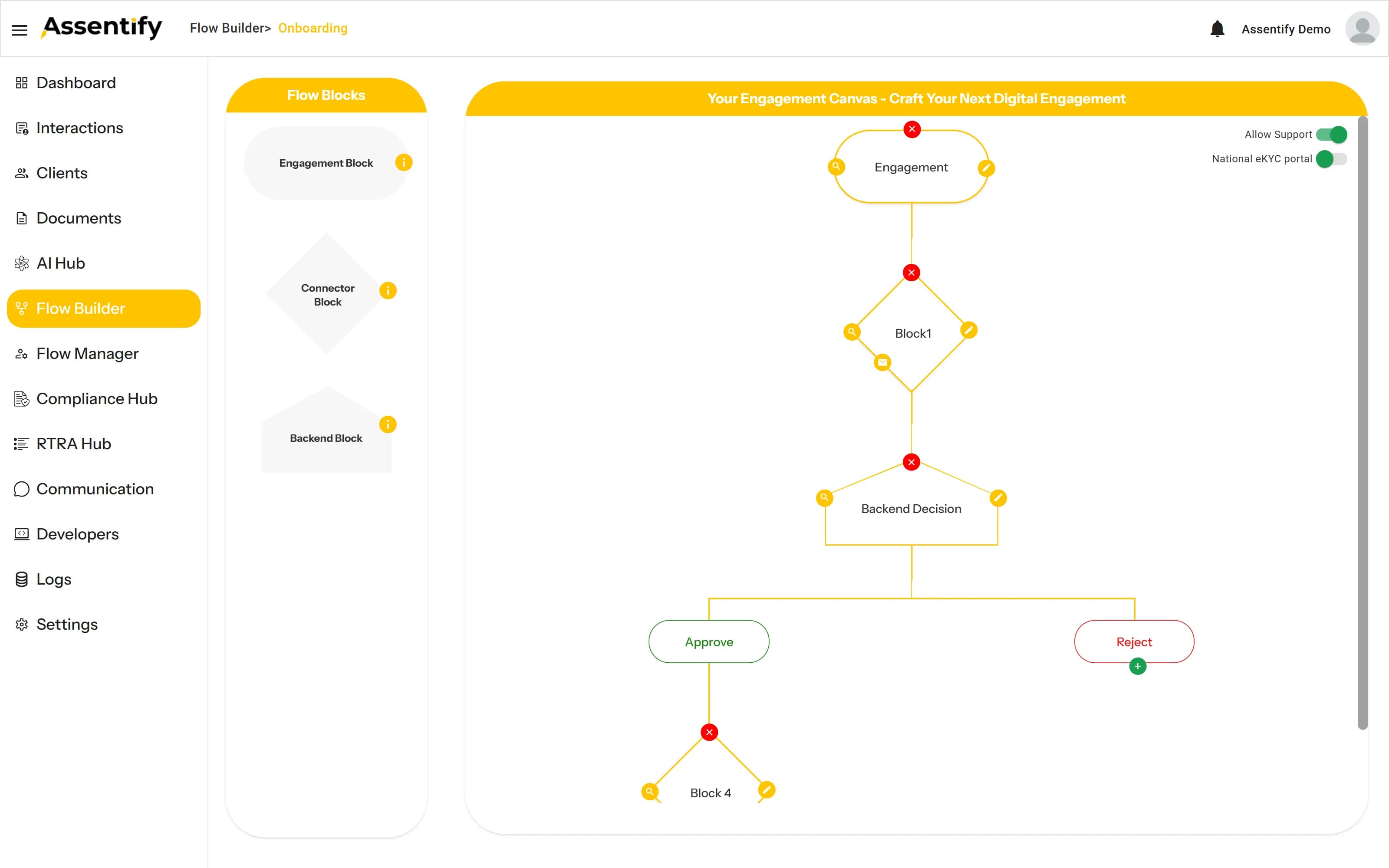
The grammar
Three block types. That is the whole language.
Almost every regulated interaction is the same three moves repeated: show the client something, talk to another system, decide. So the canvas has three shapes.
Engagement Block
Rounded square
Everything the client sees and does.
Engagement steps run wherever the flow is published: a browser, a chat thread, or your own app. This is where a document is captured, a face is acquired, a form is filled, a document is signed and a session is wrapped up.
Connector Block
Diamond
Where the flow talks to the outside.
A Connector Block reaches out: a web hook to your systems, an SMS, an email, a WhatsApp message, a chatbot exchange, a client record update, an interaction status change. On the canvas it carries an extra email control alongside delete, inspect and edit.
Backend Block
Pentagon
Where the flow thinks and decides.
Screening, pre-processing, post-processing and decision making live here, as settings on the one step a Backend Block holds today: the Application Processing Step.
Steps the client meets
Seventeen steps ship in the library. They cover the whole arc of a regulated interaction, from the first screen to the signed document and the wrap up.
- Block Loader
- Informative Onboarding
- Service Selection
- Identification Document Capture
- Facial Image Acquisition
- Document Capture
- Assisted Data Entry
- Compliance
- Questionnaire
- Location Selection
- Image / Video Capture
- Terms & Conditions
- Slot Booking
- Context Aware Signing
- Form of Payment
- Split
- Wrap Up
Each one opens into what it does and what you set on it in the step library on the Flows Hub page.
Steps the client never sees
Seven Connector Block steps carry the message traffic out of the flow. They are the reason a flow can finish without anyone touching a second system.
- Web Hook
- SMS
- Chatbot
- Interaction Status Change
- Client Update
Backend Block · one step
The Application Processing Step is the only step a Backend Block holds today.
On the roadmap: Evidence Capture Step, Audio input and transcription on Assisted Data Entry, Catalog Builder, QR-code Face Capture, Flow duplication and sharing.
Step configuration
Identification Document Capture, every setting.
The settings on this one step decide the difference between a strict account opening and a light renewal.
| Setting | Type | What it controls |
|---|---|---|
| Title | Text, required | The heading the client reads on the capture screen. |
| Subtitle | Text | One line of guidance under the title. |
| Logo | Upload, PNG / JPG / SVG | The mark shown on this step. Set per flow, not per tenant. |
| Next Button | Text | The label on the button that moves the client forward. |
| Normal Click | Toggle | Capture on a button press instead of automatic capture. |
| Skip Ability | Toggle | Lets the client move past the step without presenting a document. |
| Allow Passport | Toggle | Accepts a passport as well as the selected document type. |
| Country | Dropdown | The issuing country whose document templates load, for example Lebanon. |
| Document Type | Dropdown | The exact document expected, for example Lebanese Driving License. |
| Front Only | Toggle | Captures the front of the card and skips the reverse. |
| Allow Mobile Based Capture | Toggle | Offers a handoff to the camera on the client phone. |
| Set Mobile Capture as Default | Toggle | Starts on the phone rather than the desktop webcam. |
| Mobile Only Scanning | Toggle | Refuses desktop capture entirely for this step. |
| Show Result Page | Toggle | Shows the extracted values back to the client for confirmation. |
| Store Captured Document | Toggle | Keeps the captured image on the record, or deliberately does not. |
| Is Manual Capture | Toggle | Hands the shutter to the client instead of the auto-capture engine. |
| Document Liveness | Toggle | Runs the card liveness check: a real document in front of the camera, not a screen or a print. |
| Disable Data Extraction | Toggle | Captures the image without running extraction over it. |
Read the mobile controls together. Allow Mobile Based Capture offers the phone. Set Mobile Capture as Default starts on the phone. Mobile Only Scanning refuses the desktop webcam altogether. A bank running a branch flow on a fixed workstation and a wallet running a self-serve flow on a commuter train need opposite answers, and both are one toggle away.
Store Captured Document is a data protection decision expressed as a switch. Some regulators require the image to be retained; some data minimisation policies require it to be discarded once the values are extracted. Disable Data Extraction covers the opposite case, where you need the image on file and nothing read from it. Neither requires a change to the code that runs the capture.
Backend Block · Application Processing Step
Where the flow decides, and your operators work.
The one step a Backend Block holds today. It appears as Application Command, renders the Application Processing Command Center, and is where all the data the flow collected lands.
Everything the flow gathered arrives on one record: the captured document, the captured face and the match percentage between them, the extracted values and any a person edited, the screening result with every list marked pass or match, the device, the user agent and the timings. Nothing has to be reconciled from a second system, because nothing was collected by one.
This is also the step where a client’s own operators work. They process interactions here, and they create the internal flow around a case here. Pre-Processing is what an operator must supply before a decision is allowed, Decisions are the buttons they press, and Configure Interactions decides what they see. The internal procedure lives inside the flow instead of beside it.
- Automated Processing
- Perform AML Screening and Perform PEP Screening toggles, the selectable screening lists, a Filter by control for narrowing a search by country or date of birth, and the Automated Decisions rule builder.
- Pre-Processing
- What a reviewer must supply before a decision is allowed: Input Text, Attach File and Select Value entries.
- Decisions
- Approve and Decline out of the box, plus any custom decision you add. Every decision configured here becomes a button on the record.
Automated Decisions, field by field
The rule builder has four fields and no scripting language, so a compliance officer can read every rule and defend it to a regulator.
- Rule Name
- What this rule is called in the audit trail and in the reviewer view.
- Condition
- The data point and the comparison the rule tests.
- Decision
- Which of the configured decisions fires when the condition holds.
- Check Value
- The threshold or value the condition is measured against.
An example rule set
RULE     Clean pass
COND     Face match percentage
DEC      Approve
VALUE    92

RULE     Weak biometric match
COND     Face match percentage
DEC      Manual review
VALUE    60

RULE     Screening match raised
COND     AML result on selected lists
DEC      Decline
VALUE    Match

RULE     Document liveness failed
COND     Document liveness result
DEC      Manual review
VALUE    Fail
Illustrative only. Your thresholds are yours, and every decision named in a rule has to exist in the Decisions section of the same block before it can be selected.
Configure Interactions table
The last control on the Application Command panel opens a drag and drop configurator for the reviewer table. You choose which of the flow data points become columns, and which are grouped into buckets on the expanded record. Filters in the command center are then generated from the flow itself, which is why a passport flow filters on Document Number and Expiry Date while a business flow filters on Registration Number and Jurisdiction. Nobody writes a query. The flow already knows what it collected.
Configure Interactions
- Document Number
- Column
- Expiry Date
- Column
- Match Percentage
- Column
- Address
- Bucket
- Employer
- Bucket
The point of the canvas
A flow is a document you edit and publish in minutes.
A coded flow makes every change a scoping session, a change request and a release window. When the flow is configuration, a good idea costs the time it takes to drag a block.

After the canvas
The flow you drew is the flow that ships.
The canvas is the runtime definition, so what you see on the screen is what a client meets on the other end.
Measurement arrives with the flow: capture success by attempt, image quality outcomes and per-step latency on the Dashboard, from the first interaction. How a live flow is measured and improved.
Questions
Flow Builder, answered.
Flow Builder is the drag and drop canvas inside Assentify Flows Hub where a client flow is designed without code. The canvas is titled Your Engagement Canvas, and a flow is assembled from three block types: Engagement Blocks for what the client sees, Connector Blocks for messages and calls out to other systems, and Backend Blocks for screening and decisions. Each block is configured through forms, and the finished flow is published to the web, to conversational channels and to mobile SDKs from Flow Manager.
No, a flow is built by dragging steps onto the canvas and filling in configuration forms, so a compliance officer or a product owner can build and change one without an engineering ticket. Connecting a system for the first time happens once, in the Data Sources engine, with no development, and the source is then reusable by everyone building flows.
Eighteen settings, from the wording on the screen to whether the card liveness check runs. They include the issuing Country and Document Type, Allow Passport, Front Only, three mobile capture controls, Show Result Page, Store Captured Document, Is Manual Capture, Document Liveness and Disable Data Extraction. That level of control is why the same platform can run a strict bank account opening and a light-touch insurance renewal without either compromising for the other.
Automated Decisions is a rule builder on the Application Processing Step, the one step a Backend Block holds today, and each rule has four fields: Rule Name, Condition, Decision and Check Value. Rules read the data the flow has already produced, such as a face match percentage or a screening result, and fire one of the decisions configured on the same block. Anything no rule resolves lands in the Application Processing Command Center for a human, so straight-through processing and manual review are the same pipeline rather than two systems.
Minutes for a web or conversational flow. You edit the flow on the canvas, press Publish Flow in Flow Manager, and the published link, short URL and QR code serve the new version. There is no build, no deployment window and no release train, because the flow is configuration held by the platform rather than code held in an application.
Start
Draw a flow on a real tenant, for a month.
We provision your own subdomain with a sandbox allowance. Build something you would actually put in front of a client, publish it, and see whether it holds up.